
🚀 Create a Folder Bookmarking System in Bash with goto and bookmark Commands
Tired of typing long paths or digging through cd history to jump to your commonly used directories? With a simple Bash tool, you can create named bookmarks for…
By Saiful Alam
Tired of typing long paths or digging through cd history to jump to your commonly used directories? With a simple Bash tool, you can create named bookmarks for folders and jump to them instantly using goto.
In this article, you'll learn how to set up:
- ✅
bookmark [name]— Save the current directory under a friendly name - ✅
goto [name]— Jump directly to a bookmarked folder (or interactively pick one) - ✅ 🧠 Tab-autocomplete — Auto-suggest bookmark names with
<TAB>
Let’s get started.
📁 1. Add Bookmarking Script to Your Shell
Add the following code to your ~/.bashrc (or ~/.zshrc if you use Zsh):
source ~/.bookmark
Now create a file in your home directory, ~/.bookmark and put these code in there.
# Bookmark storage file
BOOKMARKS_FILE="$HOME/.folder_bookmarks"

# Save current directory with a name
bookmark() {
    local name="$1"

    if [ -z "$name" ]; then
        echo -n "Enter bookmark name: "
        read name
    fi

    if [ -z "$name" ]; then
        echo "Bookmark name cannot be empty."
        return 1
    fi

    mkdir -p "$(dirname "$BOOKMARKS_FILE")"

    # Remove any existing entry with the same name
    grep -v "^$name|" "$BOOKMARKS_FILE" 2>/dev/null > "${BOOKMARKS_FILE}.tmp"
    mv "${BOOKMARKS_FILE}.tmp" "$BOOKMARKS_FILE"

    # Save the new bookmark
    echo "$name|$PWD" >> "$BOOKMARKS_FILE"
    echo "Bookmarked '$PWD' as '$name'"
}

# Navigate to a bookmarked directory
goto() {
    local name="$1"

    if [ ! -f "$BOOKMARKS_FILE" ]; then
        echo "No bookmarks found."
        return 1
    fi

    local dir

    if [ -n "$name" ]; then
        dir=$(grep "^$name|" "$BOOKMARKS_FILE" | cut -d'|' -f2)
        if [ -z "$dir" ]; then
            echo "Bookmark '$name' not found."
            return 1
        fi
    else
        # Interactive prompt using fzf
        local selection
        selection=$(awk -F '|' '{ printf "%s\t%s\n", $1, $2 }' "$BOOKMARKS_FILE" | fzf --prompt="Goto bookmark: " --with-nth=1)
        if [ -z "$selection" ]; then
            echo "No selection made."
            return 1
        fi
        dir=$(echo "$selection" | cut -f2)
    fi

    if [ -d "$dir" ]; then
        cd "$dir"
    else
        echo "Directory does not exist: $dir"
    fi
}

# Autocomplete function for goto
_goto_complete() {
    local cur_word bookmarks
    cur_word="${COMP_WORDS[COMP_CWORD]}"
    if [ -f "$BOOKMARKS_FILE" ]; then
        bookmarks=$(cut -d'|' -f1 "$BOOKMARKS_FILE")
        COMPREPLY=( $(compgen -W "$bookmarks" -- "$cur_word") )
    fi
}

# Register autocomplete for goto
complete -F _goto_complete goto
Download the file from here.
🧠 3. How It Works — Code Explanation
Let’s break down how the bookmark and goto functions work under the hood, along with tab completion logic.
📌 BOOKMARKS_FILE="$HOME/.folder_bookmarks"
This defines where all bookmarks will be saved — a simple text file where each line stores:
name|/absolute/path/to/folder
Example:
projectX|/home/user/code/projectX
work|/home/user/workspace
This file is used for reading and writing bookmark data.
💾 The bookmark Function
bookmark() {
    local name="$1"

    if [ -z "$name" ]; then
        echo -n "Enter bookmark name: "
        read name
    fi
- If a name is passed as an argument, it's used.
- If not, the user is prompted to enter one.
    if [ -z "$name" ]; then
        echo "Bookmark name cannot be empty."
        return 1
    fi
- Ensures that an empty name isn’t saved.
mkdir -p "$(dirname "$BOOKMARKS_FILE")"
- Makes sure the folder for the bookmarks file exists (mostly redundant but safe).
    grep -v "^$name|" "$BOOKMARKS_FILE" 2>/dev/null > "${BOOKMARKS_FILE}.tmp"
    mv "${BOOKMARKS_FILE}.tmp" "$BOOKMARKS_FILE"
- Removes any previous entry with the same name, so each bookmark name is unique.
    echo "$name|$PWD" >> "$BOOKMARKS_FILE"
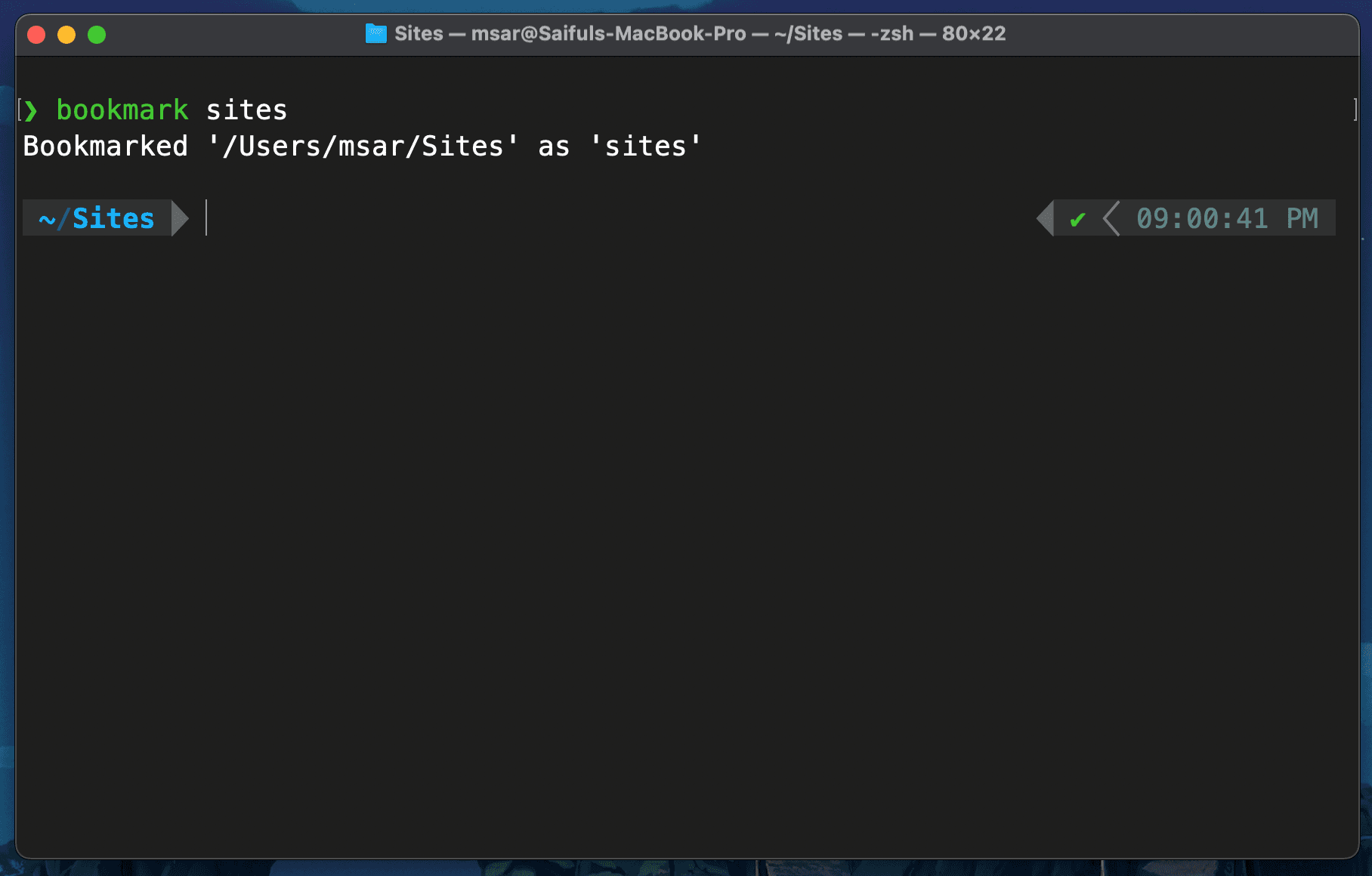
    echo "Bookmarked '$PWD' as '$name'"
- Appends the new bookmark as
name|directoryto the file.
🚀 The goto Function
goto() {
    local name="$1"

    if [ ! -f "$BOOKMARKS_FILE" ]; then
        echo "No bookmarks found."
        return 1
    fi
- If the bookmarks file doesn’t exist, it aborts.
📥 Option 1: Name is Given
    if [ -n "$name" ]; then
        dir=$(grep "^$name|" "$BOOKMARKS_FILE" | cut -d'|' -f2)
        if [ -z "$dir" ]; then
            echo "Bookmark '$name' not found."
            return 1
        fi
- Searches the file for the bookmark and extracts the path.
- If the name doesn’t match, shows an error.
📥 Option 2: No Name Provided
    else
        local selection
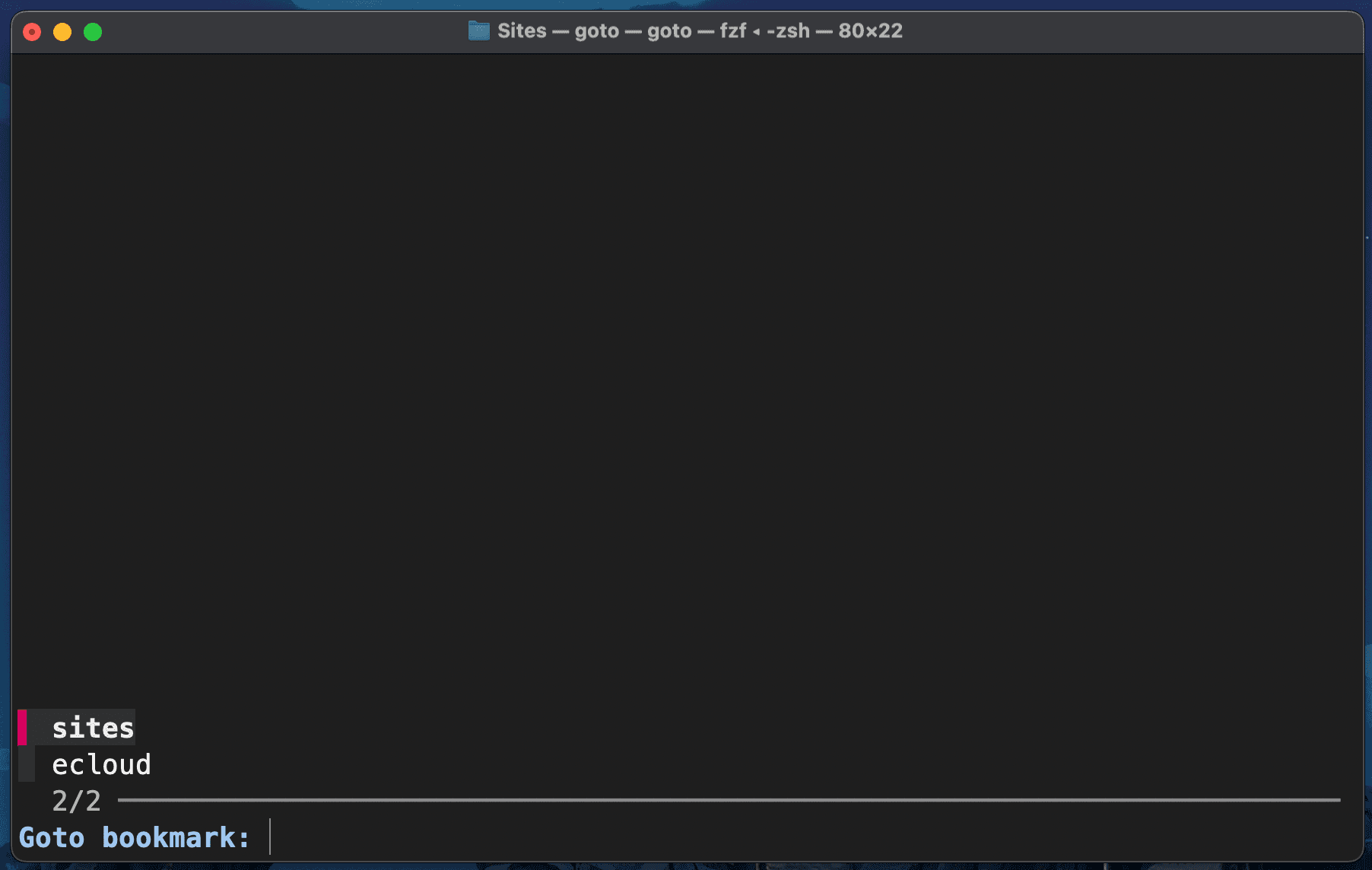
        selection=$(awk -F '|' '{ printf "%s\t%s\n", $1, $2 }' "$BOOKMARKS_FILE" | fzf --prompt="Goto bookmark: " --with-nth=1)
- Uses
fzfto display an interactive list in the terminal. - Shows bookmarks in the format:
name /path.
dir=$(echo "$selection" | cut -f2)
- Extracts the selected path after the user chooses.
📂 Navigate to the Folder
    if [ -d "$dir" ]; then
        cd "$dir"
    else
        echo "Directory does not exist: $dir"
    fi
}
- Navigates to the directory if it still exists.
- Shows an error if the path was deleted or moved.
🔄 Tab Completion for goto
For Bash:
_goto_complete() {
    local cur_word bookmarks
    cur_word="${COMP_WORDS[COMP_CWORD]}"
    bookmarks=$(cut -d'|' -f1 "$BOOKMARKS_FILE")
    COMPREPLY=( $(compgen -W "$bookmarks" -- "$cur_word") )
}
complete -F _goto_complete goto
- Uses Bash’s
completesystem. - Pulls all bookmark names from the file and offers them as suggestions when the user presses
<TAB>.
For Zsh, a similar logic is used with compctl.
✅ Summary
| Component | Role |
|---|---|
bookmark |
Saves the current folder with a custom name |
goto |
Navigates to a saved folder by name or interactive prompt |
.folder_bookmarks |
Stores bookmarks as `name |
fzf |
Provides fuzzy search UI when no bookmark name is given |
| Tab Completion | Enables goto <TAB> suggestions for saved bookmarks |
This approach is simple, portable, and doesn't require any external frameworks — just Bash and fzf.
Would you like a downloadable .sh version or install script for easy sharing?
⚙️ 3. Requirements
This setup uses fzf for fuzzy searching when goto is called without a name.
Install it using:
# macOS
brew install fzf

# Ubuntu/Debian
sudo apt install fzf
Or install manually:
git clone --depth 1 https://github.com/junegunn/fzf.git ~/.fzf
~/.fzf/install
🚀 Usage Examples
bookmark project-alpha    # Save current directory as 'project-alpha'
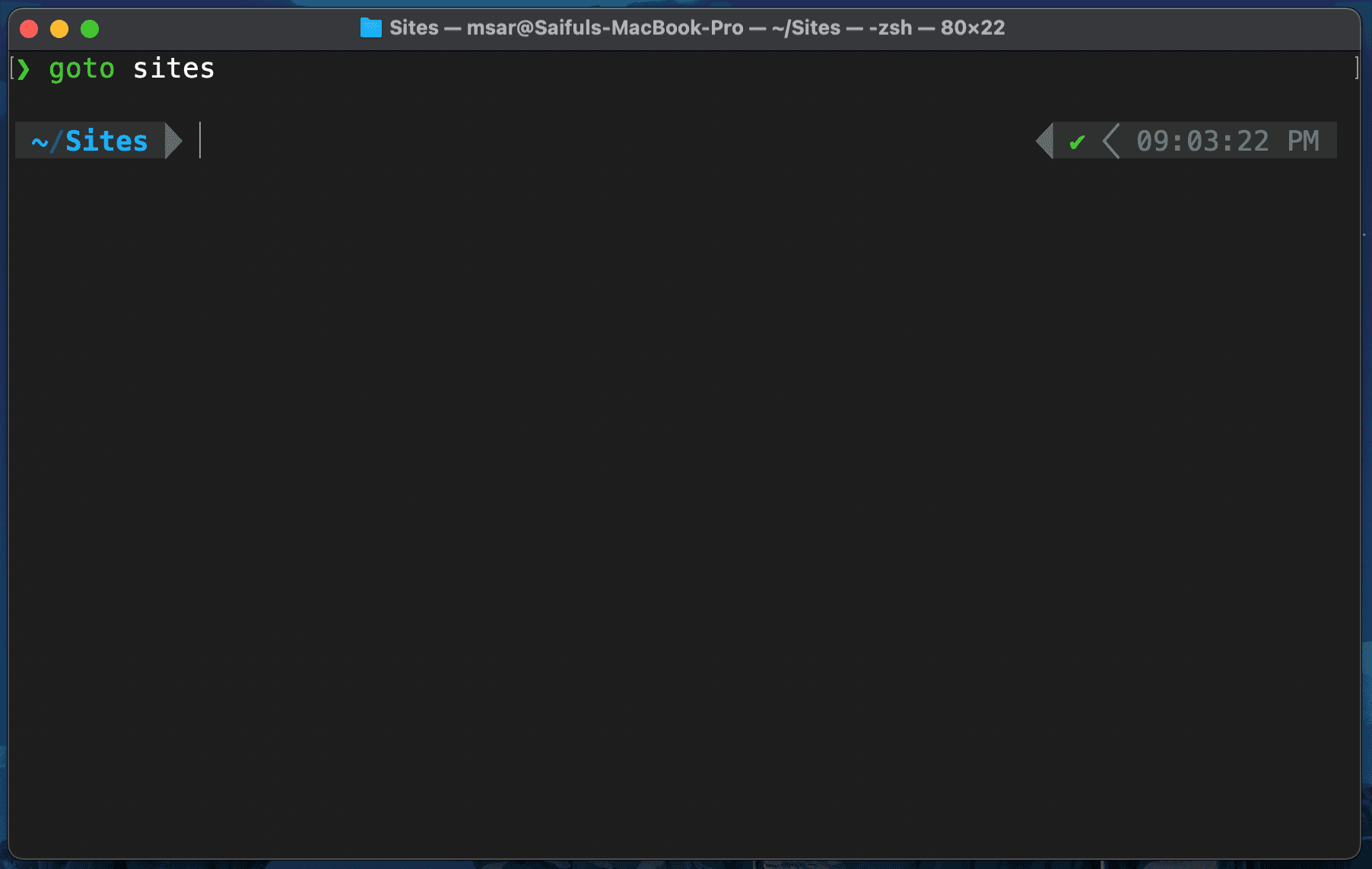
goto project-alpha        # Jump to 'project-alpha'

bookmark                  # Prompts for a name
goto                      # Use fuzzy search to select one
Hit <TAB> after typing goto to autocomplete available bookmarks!
📌 Conclusion
With just a few lines of Bash and the power of fzf, you now have a fast, flexible, and friendly way to bookmark and navigate your filesystem. Whether you're managing multiple projects, deep folder hierarchies, or just want to speed up your workflow, this setup keeps your terminal navigation blazing fast.
Happy hacking! ⚡