Caddy — A powerful web server!
Complete Caddy web server tutorial covering HTTPS automation, reverse proxy, Docker, PHP, React, and production deployment.
By Saiful Alam
1. Introduction
Caddy is an open-source web server written in Go that is designed to make running and deploying web applications simple. Unlike older servers such as Apache or Nginx, Caddy focuses on removing friction — especially around configuration and HTTPS management — so you can spend more time building and less time babysitting infrastructure.
One of Caddy’s biggest conveniences is automatic HTTPS. With sensible defaults and an easy-to-read Caddyfile, you don’t need to learn a complex configuration language or wrestle with TLS certificates. Caddy also includes built-in support for HTTP/3, which helps ensure fast, modern performance today and better compatibility for the future.
Caddy runs with zero runtime dependencies, making it lightweight and straightforward to install. It’s also capable: you can use it as a reverse proxy with load balancing, caching, circuit breaking, and health checks. If you need additional functionality, Caddy supports plugins to extend its capabilities.
These features make Caddy a reliable option for both hobby projects and enterprise deployments. Whether you’re just getting started or you’re an experienced developer, Caddy aims to make server management painless so you can focus on your application.
In this article, we’ll walk through key Caddy features — serving static files, proxying requests to backend apps, automatic HTTPS, and how it can integrate with observability tools for logging and uptime monitoring.
2. Prerequisites
Before you begin, make sure you have a few basic tools and settings in place so the examples run smoothly:
- Comfortable using the command line — you’ll be running a few terminal commands.
- Docker and Docker Compose (recent versions) installed on your machine so you can build and run the example containers.
- Git installed so you can clone the example repositories.
- (Optional) A domain name if you want to follow the HTTPS examples end-to-end.
If any of these are missing, you can install them quickly with your platform’s package manager or Docker’s official installer; the domain is only required when you want to test the automatic HTTPS flow.
3. Caddy’s Automatic HTTPS & SSL Features
One of Caddy’s most compelling value propositions is how it completely rethinks HTTPS. Traditionally, TLS setup has been operationally heavy — manual certificate issuance, cron-based renewals, and brittle configurations. Caddy removes that entire layer of complexity and makes HTTPS the default, not an afterthought.
3.1 How Automatic HTTPS Works
When you configure Caddy with a valid domain name, it automatically handles HTTPS for you. There is no need to generate certificates manually, install Certbot, or set up renewal scripts.
Basic workflow
Caddy starts
   ↓
Detects domain from config
   ↓
Requests SSL certificate
   ↓
Verifies domain ownership
   ↓
Enables HTTPS
Caddy communicates directly with a Certificate Authority such as Let’s Encrypt, configures secure TLS settings, and stores the certificate locally. Renewal is also handled automatically before the certificate expires.
Simple example
example.com {
    reverse_proxy localhost:3000
}
That’s enough. Once Caddy starts, https://example.com works automatically.
3.2 Wildcard SSL Certificates
Wildcard certificates are useful when you need to secure multiple subdomains under a single domain, such as:
- app.example.com
- api.example.com
- admin.example.com
- or even dynamic, user-generated subdomains
Instead of issuing and managing certificates for each subdomain individually, a wildcard certificate like *.example.com covers them all. This is especially valuable in multi-tenant systems, SaaS platforms, and environments where subdomains are created dynamically.
To issue a wildcard certificate, Caddy uses the DNS challenge. This method proves domain ownership by creating a temporary DNS record rather than serving a file over HTTP. Because of this, you need API access to your DNS provider (such as Cloudflare, Route53, or DigitalOcean).
3.3 Certificate Management & Security
After certificates are issued, Caddy continues managing them in the background.
Automatic renewals
Caddy monitors certificate expiration dates and renews them automatically. No cron jobs, no restarts, and no manual intervention are required.
Handling failures
If a challenge fails due to DNS issues or permission problems, Caddy:
- Logs clear error messages
- Retries automatically
- Keeps the existing certificate until renewal succeeds
This reduces the risk of unexpected HTTPS downtime.
4. Setting Up Caddy for Local Development
The examples below focus mainly on macOS and Linux, for Windows, follow the official documentation.
4.1 Installing Caddy
Installing Caddy is straightforward and doesn’t require complex dependencies.
macOS (Homebrew)
brew install caddy
Linux (official repository)
sudo apt install -y debian-keyring debian-archive-keyring apt-transport-https curl
curl -1sLf 'https://dl.cloudsmith.io/public/caddy/stable/gpg.key' | sudo gpg --dearmor -o /usr/share/keyrings/caddy-stable-archive-keyring.gpg
curl -1sLf 'https://dl.cloudsmith.io/public/caddy/stable/debian.deb.txt' | sudo tee /etc/apt/sources.list.d/caddy-stable.list
chmod o+r /usr/share/keyrings/caddy-stable-archive-keyring.gpg
chmod o+r /etc/apt/sources.list.d/caddy-stable.list
sudo apt update
sudo apt install caddy
Windows
Download the binary or installer from the official Caddy website and follow the installer steps.
Verifying the installation
After installation, confirm Caddy is available:
caddy version
If you see a version number, Caddy is ready to use.
4.2 Running Multiple Local Sites
A common local setup involves working on multiple projects at the same time. Caddy handles this cleanly using a single configuration file.
Example local project structure
~/projects/
 ├── blog
 ├── api
 └── dashboard
Each project can be mapped to its own local domain.
Using custom .test domains
Add entries to your /etc/hosts file:
127.0.0.1 blog.test
127.0.0.1 api.test
127.0.0.1 dashboard.test
.test domains are reserved for local use and work well for development.
Single Caddyfile with multiple sites
blog.test {
    root * ~/projects/blog
    file_server
}

api.test {
    reverse_proxy localhost:4000
}

dashboard.test {
    reverse_proxy localhost:5173
}
4.3 Local HTTPS
Modern applications often rely on HTTPS-only features such as:
- Secure cookies
- OAuth callbacks
- Service workers
- SameSite cookie policies
Caddy makes local HTTPS easy using internal certificates.
Using tls internal
blog.test {
    root * ~/projects/blog
    file_server
    tls internal
}
This tells Caddy to:
- Create a local Certificate Authority
- Issue trusted certificates for local domains
- Manage everything automatically
On first run, Caddy may ask for permission to trust its local CA.
5. Reusable Snippets (Custom Reusable Config Blocks)
As projects grow, Caddyfiles can quickly become repetitive. The same headers, compression rules, or security settings often appear across multiple sites. Caddy solves this problem with snippets — small, reusable configuration blocks that help keep your setup clean and consistent.
5.1 Why Snippets Matter
Snippets allow you to define common configuration once and reuse it everywhere. This is especially useful when working with multiple local projects or managing several environments.
Key benefits:
- Avoid repeating the same configuration across sites
- Reduce copy-paste errors
- Make updates easier and safer
- Keep Caddyfiles readable as setups grow
In short, snippets help you treat your Caddy configuration like real, maintainable code.
5.2 Creating Your Own Snippets
Snippets are defined using parentheses and can contain any valid Caddy directives, here are some snippets example.
Example: security headers snippet
(security_headers) {
    header {
        X-Content-Type-Options "nosniff"
        X-Frame-Options "DENY"
        Referrer-Policy "no-referrer"
        Strict-Transport-Security "max-age=31536000; includeSubDomains"
    }
}
Snippet for CORS (useful for API development)
(cors_dev) {
    @cors_preflight method OPTIONS
    handle @cors_preflight {
        header {
            Access-Control-Allow-Origin "*"
            Access-Control-Allow-Methods "GET, POST, PUT, PATCH, DELETE, OPTIONS"
            Access-Control-Allow-Headers "Content-Type, Authorization"
            Access-Control-Max-Age "3600"
        }
        respond 204
    }
    header {
        Access-Control-Allow-Origin "*"
        Access-Control-Allow-Credentials "true"
    }
}
Proxy with fallback and custom error handling
(proxy_with_fallback) {
    reverse_proxy {args[0]} {
        transport http {
            dial_timeout 2s
            response_header_timeout 30s
        }
    }
    handle_errors {
        respond "Service temporarily unavailable. Please try again later." 503
    }
}
Using snippets in a site
example.com {
    import security_headers

    import proxy_with_fallback 3000
}
5.3 Using Snippets Across Local & Production Sites
A common pattern is to keep all snippets at the top of the Caddyfile or move them into a separate file:
Example structure
caddy/
 ├── Caddyfile
 └── snippets/
     ├── security.caddy
     ├── proxy.caddy
     └── cors.caddy
Then just add this to your main Caddyfile.
import snippets/*.caddy

example.com, www.example.com {
    import security_headers
    import cors_dev
}
6. Caddyfile Configuration: Default vs Custom Paths
As your Caddy setup grows beyond a single site, understanding where Caddy loads its configuration from becomes important. Caddy is flexible here — it works out of the box with sensible defaults, but also gives you full control when you need custom paths or structured setups.
6.1 Default Caddyfile Path
By default, Caddy looks for a file named Caddyfile in a standard system location.
Common default paths:
- Linux: /etc/caddy/Caddyfile
- macOS (Homebrew): /opt/homebrew/etc/caddy/Caddyfile
- Windows: C:\caddy\Caddyfile (or install directory)
When Caddy is installed as a service, it automatically loads this file on startup.
6.2 Using a Custom Caddyfile Path
In real projects, especially during development, you often want multiple Caddyfiles — one per project or environment. Caddy supports this cleanly.
Running Caddy with a custom config
caddy run --config ./Caddyfile
Or explicitly specify the format:
caddy run --config ./Caddyfile --adapter caddyfile
For development uses
- Keep the Caddyfile inside the project
- Easy to version-control
- Quick local iteration
project/
 ├── Caddyfile
 └── src/
For production uses
- Use the system Caddyfile
- Managed by systemd or service manager
- Centralized configuration
/etc/caddy/Caddyfile
Typical workflow
Local dev → custom Caddyfile
Staging   → custom path
Production → default system path
This separation helps avoid accidental config changes in production.
6.3 Structure Tips for Large Configurations
As the number of sites increases, a single large Caddyfile can become hard to manage. Caddy provides simple tools to keep things organized.
Split configs using imports
import sites/*.caddy
import snippets/*.caddy
Example structure
caddy/
 ├── Caddyfile
 ├── sites/
 │   ├── blog.caddy
 │   ├── api.caddy
 │   └── dashboard.caddy
 └── snippets/
     ├── security.caddy
     ├── compression.caddy
     └── caching.caddy
Each site file contains only its site block:
blog.example.com {
    import security_headers
    import compression
    reverse_proxy localhost:3000
}
Using default paths keeps things simple, while custom paths and structured imports give you the flexibility needed for real-world applications. Caddy lets you start small and scale your configuration naturally — without rewriting everything later.
7. Setting Up Caddy on a Server
Okay, Let’s walk through a real-world server setup using caddy, where we will host a Laravel/PHP application and another is a static react application.
7.1 Installing Caddy on a Linux Server
To install Caddy on a Linux-based operating system, follow the installation part in this article above.
Enabling the Caddy service
Once installed, Caddy runs as a system service, we just need to start the service.
sudo systemctl enable caddy
sudo systemctl start caddy
Verify it’s running:
sudo systemctl status caddy
This makes Caddy suitable for long-running, unattended production systems.
Now you need to just point your domain to the server, like if your domain name is myblog.com and your API backend will be api.myblog.com then you need to point your DNS of this urls to your server like if your server IP address like this: 104.122.11.23 then your DNS record will be.
myblog.com      →  104.122.11.23
api.myblog.com  →  104.122.11.23
7.2 Hosting Multiple Websites on One Server
Assumptions
- Laravel is deployed at:
/var/www/blog/laravel-app - PHP-FPM is running (e.g. PHP 8.4)
- Laravel’s public directory is:
/var/www/blog/laravel-app/public - React build output is located at:
/var/www/blog/react-app/dist - App uses client-side routing (React Router)
Now let’s update our caddyfile, at first it will comes with some dummy code, let’s remove it and rewrite.
by running this command in your server terminal sudo nano /etc/caddy/Caddyfile the file will be open for edit. Now in this file remove all of it’s content and put the below code.
{
    email admin@example.com
}

myblog.com {
    root * /var/www/react-app/dist

    file_server
    encode zstd gzip

    try_files {path} /index.html
}

api.myblog.com {
    root * /var/www/blog/laravel-app/public

    php_fastcgi unix//run/php/php8.4-fpm.sock
    file_server

    encode zstd gzip
}
Now restart your caddy service by sudo systemctl restart caddy and your site will be live.
7.3 Caddy as a Reverse Proxy
In most cases, we use a reverse proxy in the server to run some dynamic applications. In such cases, Caddy provides a simple solution.
Let’s create a simple caddy proxy, where our application is serve by open it’s port to 3000.
Simple reverse proxy for port 3000
example.com {
    reverse_proxy localhost:3000
}
But most of the cases we do more like some health check, forwarding some headers also want to catch the error while the proxy is down or something wrong.
For this Let’s create a snippets for all of it configuration.
Backend Snippets (Advanced)
(proxy_backend) {
	reverse_proxy {args[0:]} {
		# Load balancing
		lb_policy least_conn

		# Health checks
		health_uri /up
		health_interval 10s
		health_timeout 5s
		health_status 2xx

		# Transport timeouts
		transport http {
			dial_timeout 2s
			response_header_timeout 30s
		}

		# Forward real client information
		# header_up Host {upstream_hostport}
		header_up X-Real-IP {remote_host}
		header_up X-Forwarded-Port {server_port}
	}

	# Graceful fallback on upstream failure
	handle_errors {
		respond "Service temporarily unavailable. Please try again later." 503
	}
}
Now create another site with this proxy_backend snippet.
api.example.com {
    # For single upstream
    import proxy_backend localhost:4000

    # For multiple upstream
    import proxy_backend localhost:4400 localhost:4200
}
8. Running Caddy with Docker
The most straightforward way to begin using the Caddy server is by utilizing the official Docker image and running Caddy as a Docker container. This approach guarantees a smooth installation process that is also relatively straightforward to replicate on various systems.
8.1 Basic Docker Usage
Pull and run the official image
A practical baseline is: publish ports 80/443, mount your Caddyfile, mount your site files, and attach persistent volumes for /data and /config.
docker pull caddy:latest
Create a Caddyfile and run the command below after making changes in caddy file.
Caddyfile
localhost {
    tls internal
    root * /usr/share/caddy
    file_server
}
Then run this command.
docker run -d \
  --name caddy-server \
  -p 80:80 -p 443:443 -p 443:443/udp -p 8000:80 \
  -v $PWD/Caddyfile:/etc/caddy/Caddyfile:ro \
  -v caddy_data:/data \
  -v caddy_config:/config \
  --restart unless-stopped \
  caddy:latest
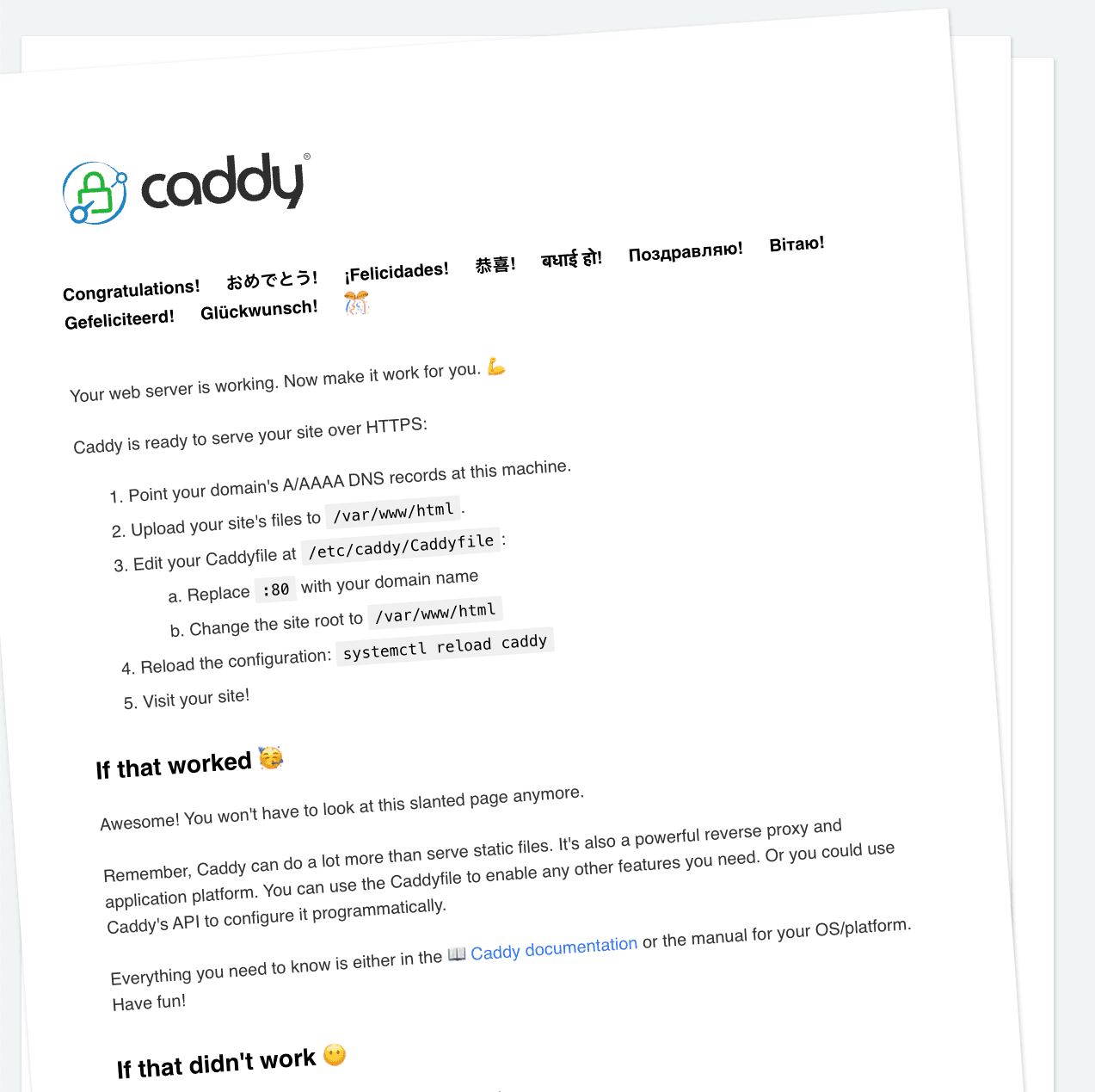
Then browse in your browser: https://localhost and you will see the caddy welcome page like below.
8.2 Docker Compose Multi-Site Setup
Okay, that’s a great start, right? Let’s move on to doing some real work.
Imagine our application architecture like this:
Browser
  ↓
Caddy (Edge / Gateway)
  ├── Static React build
  └── Reverse proxy → Node API container
First, create our actual project directory structure.
caddy-local/
├── docker-compose.yml
├── Caddyfile
└── sites/
    └── app/
        └── index.html
    └── api/
        ├── Dockerfile
        └── index.js
This keeps infra, config, and content properly decoupled.
docker-compose.yml (Single Source of Truth)
name: myapp

services:
    caddy:
        container_name: caddy
        image: caddy
        restart: always
        ports:
            - "80:80"
            - "443:443"
        volumes:
            - caddy-config:/config
            - caddy-data:/data
            - ./Caddyfile:/etc/caddy/Caddyfile
            - ./sites:/srv
        depends_on:
            - backend

    backend:
        build: ./sites/api
        container_name: node_backend
        expose:
            - "3000"

volumes:
    caddy-config:
    caddy-data:
In your Caddyfile
app.test {
    # React Router (SPA)
    root * /srv/app
    file_server
    try_files {path} /index.html

    # API
    handle_path /api/* {
        reverse_proxy backend:3000
    }

    tls internal
}

api.app.test {
    tls internal
    reverse_proxy backend:3000
}
API App dockerfile will be
FROM node:22-alpine
WORKDIR /app
COPY package*.json ./
RUN npm ci
COPY . .
EXPOSE 3000
CMD ["npm", "start"]
Now we have to map the hosts to docker and local machine, so let’s do it by open hosts file sudo nano /etc/hosts
127.0.0.1 app.test
127.0.0.1 api.app.test
Then build and trust
docker compose up --build -d

docker exec -it caddy caddy trust
You can now access your site by your defined domain easily.
9. Using the Caddy API
Caddy isn’t just a static web server — its API allows you to change configuration dynamically without editing the Caddyfile or restarting the server. This is especially powerful for automated deployments, dynamic routing, and integrations with CI/CD pipelines.
9.1 What the API Does
The Caddy API provides endpoints to:
- Add, remove, or modify site blocks
- Enable or disable routes
- Adjust global settings (logging, TLS, compression)
- Inspect server status or loaded configuration
Unlike editing a Caddyfile manually, the API applies changes on-the-fly, making it ideal for automation
9.2 Practical Use Cases
Example 1: Dynamic Domain Addition
Imagine a SaaS platform where new users get custom subdomains. You can programmatically add routes via the API.
Request example (add new site block)
curl -X POST "http://localhost:2019/config/apps/http/servers/srv0/routes" \
  -H "Content-Type: application/json" \
  -d '{
    "match": [{"host": ["newuser.example.com"]}],
    "handle": [{
        "handler": "reverse_proxy",
        "upstreams": [{"dial": "127.0.0.1:4001"}]
    }]
}'
No restart or downtime is required.
Example 2: Automated Deployments
Suppose you deploy a new React frontend build. After uploading static files, you might want to:
- Clear cache rules
- Update file server paths
- Apply gzip or Brotli compression
Instead of editing the Caddyfile manually, you can send a POST request to the API to update the configuration automatically as part of your CI/CD pipeline.
curl -X POST "http://localhost:2019/config/apps/http/servers/srv0/routes" \
  -H "Content-Type: application/json" \
  -d '{
    "match": [{"host": ["app.example.com"]}],
    "handle": [{
        "handler": "file_server",
        "root": "/srv/react-dist-new"
    }]
}'
Example 3: On-the-Fly Routing Changes
If an upstream service fails or you want blue-green deployments, the API can redirect traffic dynamically:
curl -X POST "http://localhost:2019/config/apps/http/servers/srv0/routes" \
  -H "Content-Type: application/json" \
  -d '{
    "match": [{"host": ["api.example.com"]}],
    "handle": [{
        "handler": "reverse_proxy",
        "upstreams": [{"dial": "127.0.0.1:5000"}]
    }]
}'
The switch is instantaneous, and old traffic is immediately routed to the new backend.
9.3 Securing the API
Because the API allows full configuration changes, security is critical.
Best practices:
- Bind to localhost or private network
{
  "admin": {
    "listen": "127.0.0.1:2019"
  }
}
Never expose the API directly to the public internet.
-
Use firewall rules or VPN
- Only trusted servers or CI/CD runners should access the API.
-
Authentication
- For production, consider using a reverse proxy in front of the API with basic auth or token validation.
-
Audit changes
- Log all API requests.
- Optionally, integrate with monitoring tools to detect unexpected modifications.
10. Best Practices
When working with Caddy, following a few simple best practices can make your configuration easier to maintain and your server more reliable.
Use Snippets Where Possible
Snippets are reusable blocks of configuration. For example, you can create a snippet for security headers, caching rules, or reverse proxy settings and then include it in multiple site blocks. This avoids repetition and keeps your Caddyfile clean. Instead of copying the same directives across many sites, just import the snippet wherever you need it.
Keep Site Blocks Readable
Even with multiple sites, try to organize your Caddyfile clearly. Group related settings together, use comments to explain why certain directives are there, and separate large configurations into multiple files if needed. Readable configuration makes it much easier to troubleshoot issues or onboard new team members.
Avoid Unnecessary Directives
Only include the directives your site actually needs. Extra or unused settings can confuse Caddy or create unexpected behavior. Focus on what matters for each site: SSL, reverse proxy targets, caching, and logging. Minimal, precise configuration is easier to manage and less prone to errors.
Enable Logging and Monitoring
Always enable access and error logs, even in development. Logs help you understand traffic patterns, catch issues early, and debug problems quickly. For production setups, consider combining Caddy logs with monitoring tools to get alerts when a site is down or an upstream service is failing.
By following these practices, you can build scalable, maintainable, and reliable Caddy configurations, whether you’re hosting a single site or dozens of applications.
11. Common Pitfalls & How to Avoid Them
Even though Caddy is beginner-friendly, there are a few common mistakes that can trip up developers and system administrators. Knowing these in advance will save you a lot of time and frustration.
1. DNS Issues
Caddy relies on DNS to issue certificates and route traffic. If your domain doesn’t point to the correct server, automatic HTTPS will fail, or users won’t reach your site.
How to avoid:
- Double-check A/AAAA records for your domains.
- For subdomains, ensure they’re correctly set in DNS.
- Use dig or nslookup to verify the records before starting Caddy.
- For local development, check your
/etc/hostsfile.
2. Wrong File Permissions
Caddy needs proper access to site files, Caddyfile, and data directories. If permissions are too restrictive, Caddy may fail to serve files or write certificates.
How to avoid:
- Ensure the Caddy user (or container user) can read site files and write to /data and /config.
- On Linux: chown -R caddy:caddy /srv /etc/caddy /data /config
- Avoid giving overly broad permissions; balance security and accessibility.
3. Misconfigured Docker Paths
When running Caddy in Docker, it’s common to mount the wrong paths or forget to include volumes for /data and /config. This can lead to missing TLS certificates or failed site builds.
How to avoid:
- Mount your Caddyfile and site directories correctly:
- ./Caddyfile:/etc/caddy/Caddyfile:ro
- ./site:/srv:ro
- caddy_data:/data
- caddy_config:/config
- Always use persistent volumes for certificates to prevent re-issuing on container restart.
4. Forgetting to Reload Config
Caddy can apply configuration dynamically via the API or Caddyfile reload, but forgetting to reload after edits means your changes won’t take effect.
How to avoid:
- Use caddy reload after editing Caddyfile:
caddy reload --config /etc/caddy/Caddyfile
- For Docker, you can reload inside the container:
docker exec caddy caddy reload --config /etc/caddy/Caddyfile
- For automated workflows, consider using the Caddy API to apply changes on-the-fly.
12. Conclusion
Caddy offers a refreshing approach to web servers. Unlike traditional servers that require long, complex configurations and manual SSL management, Caddy makes it easy to get sites up and running with automatic HTTPS, clean configuration syntax, and built-in features like reverse proxying, load balancing, and file serving.
Its simplicity reduces developer overhead, letting you focus on building applications instead of fighting with server setups. Whether you’re working on a local development environment for a Laravel or React app, or deploying multiple sites in production, Caddy handles the heavy lifting behind the scenes — TLS, routing, and health checks are taken care of automatically.
For developers and teams who value speed, security, and maintainability, trying Caddy is a no-brainer. Start small with a local project, explore snippets, multi-site configurations, and the API, and you’ll quickly see why many consider it one of the most developer-friendly web servers available today.
Give it a try — you might never look back at traditional web servers again. If you need more help or suggestions, please don’t hesitate to ask me. I’d be more than happy to assist you.